
What is YearMap and How Does it Work
A free academic calendar builder that can also run as a live school diary
Looking for an overview first? Visit our school calendar generator or academic calendar generator page to see how YearMap helps schools build a school calendar with term dates, INSET days and bank holidays, calculate pupil days, and export to PDF or ICS.
YearMap is a free academic calendar builder for schools. A school creates its academic year and term structure, adds school holidays, INSET/non-pupil days and other important dates, and YearMap calculates pupil days and produces a PDF and an ICS calendar file.
YearMap has also grown into a collaborative school diary. Once your official academic calendar is finished, you can clone it into an internal working calendar, share that with colleagues, and use it to track the day-to-day events of the school year, all while staying connected to a live ICS feed that keeps everyone's calendar app up to date automatically.
A typical school year with YearMap
Every calendar you create is stored securely in your account area and can be shared with colleagues at the same school.
Signing In
SSO authentication via your institution
YearMap uses Single Sign-On (SSO) through your institution's Google Workspace or Microsoft 365 account. No password is stored by YearMap itself.
Settings for Your School
Shared branding, categories and preferences for your whole organisation
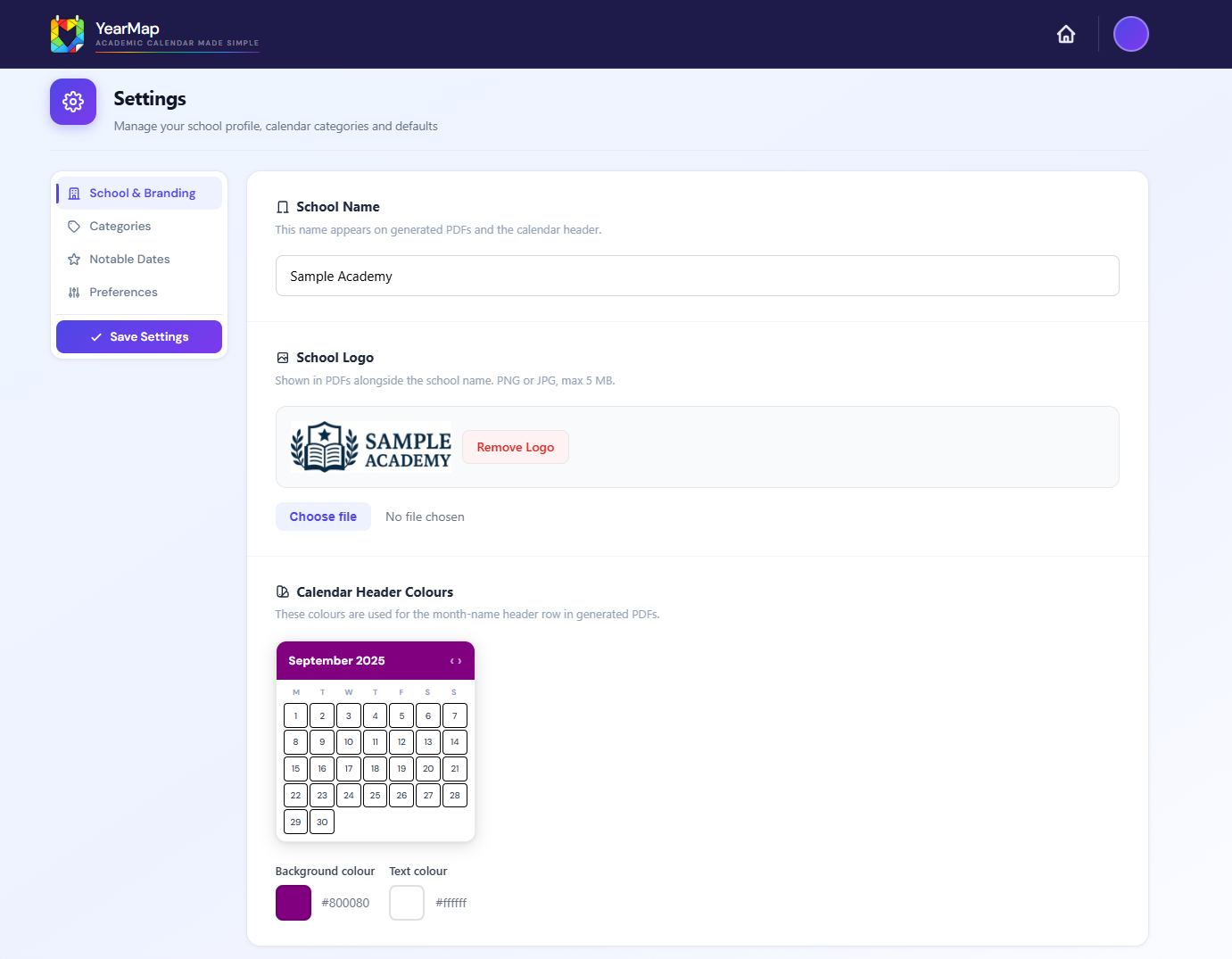
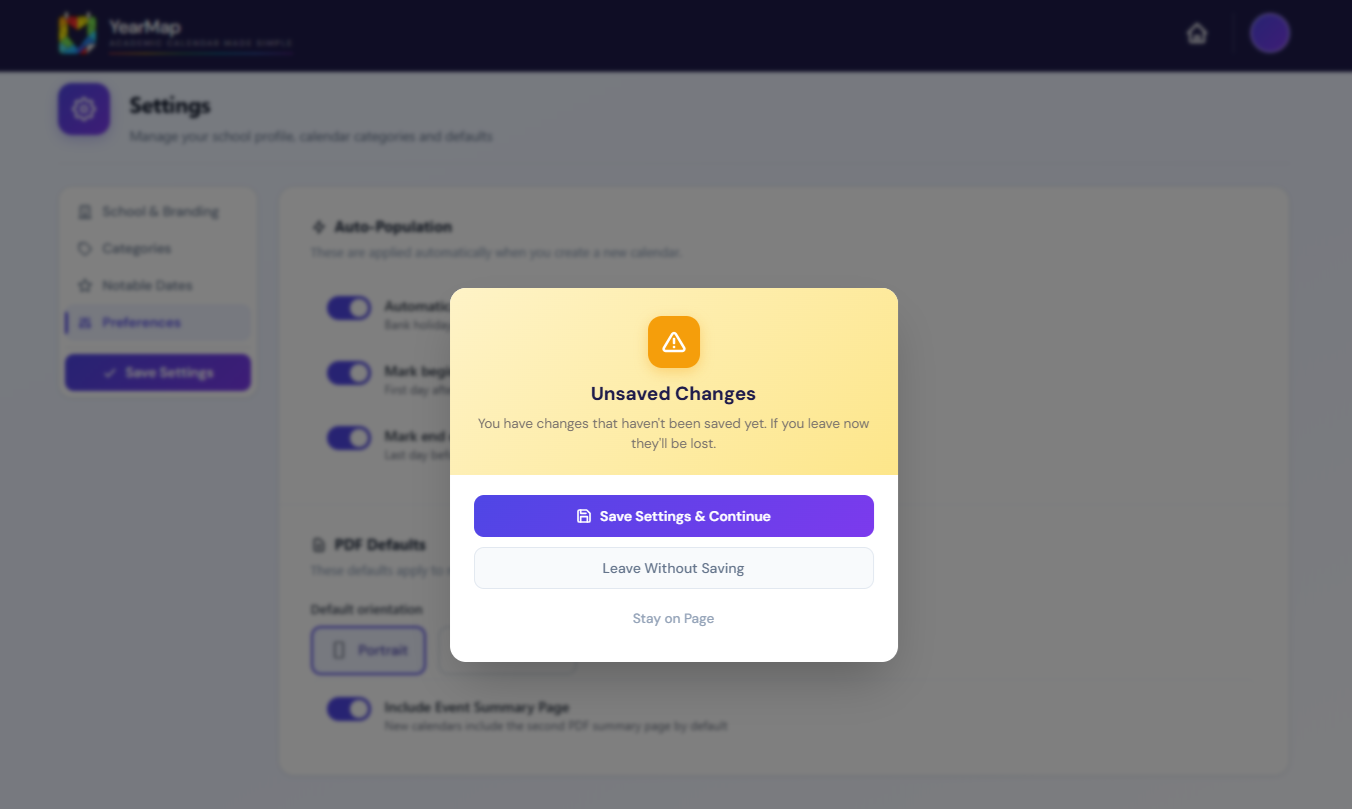
Before creating a calendar, it's worth checking your school's Settings, available from the top navigation bar. Settings in YearMap are shared at the domain/organisation level, not per user. That means everyone who signs in with your school's domain email sees and uses the same branding, the same category catalogue and the same notable date types.
| Setting | Description | Required? |
|---|---|---|
| School Name | Appears as the calendar title and in the PDF header | Required |
| School Logo | PNG or JPG, max 500KB. Automatically cropped and resized for PDF output | Optional |
| Header Background Colour | Colour used for month headers in generated PDFs | Optional |
| Header Text Colour | Colour of text within PDF month headers | Optional |
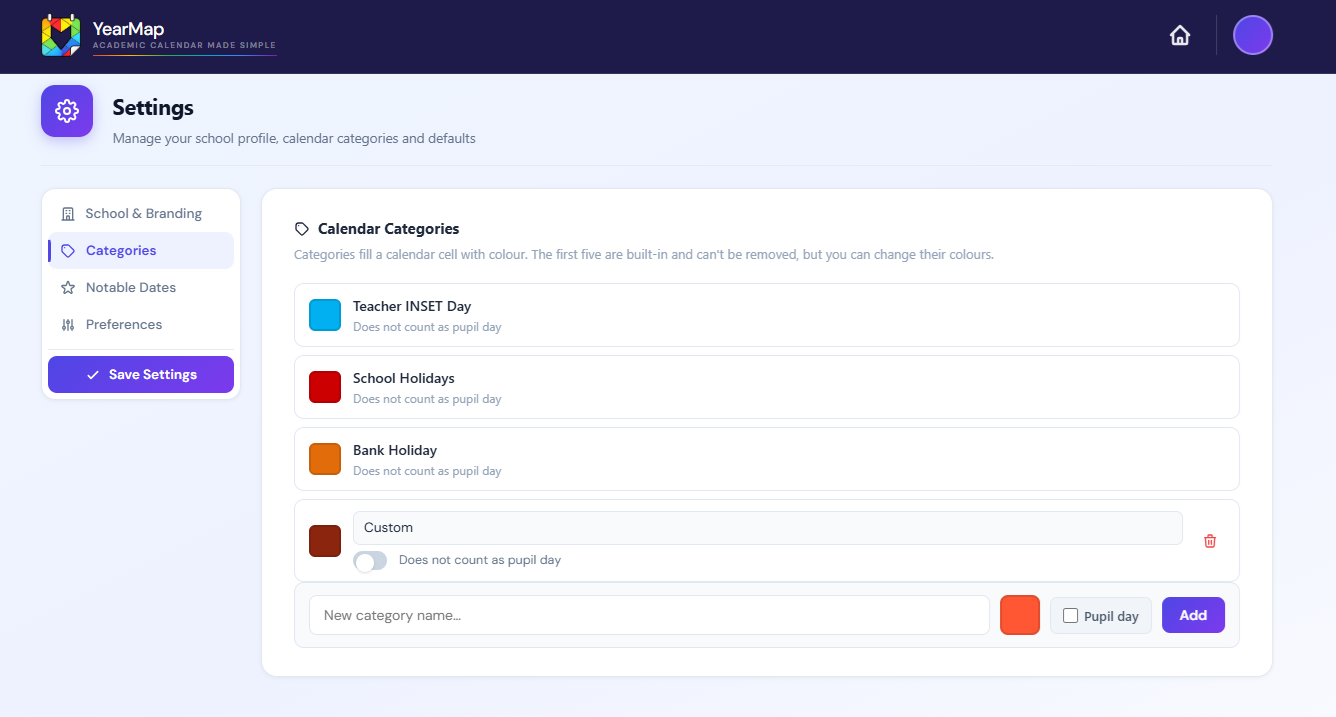
| Categories | The shared catalogue of built-in and custom categories available to every calendar created on your domain. See Categories for details | Optional |
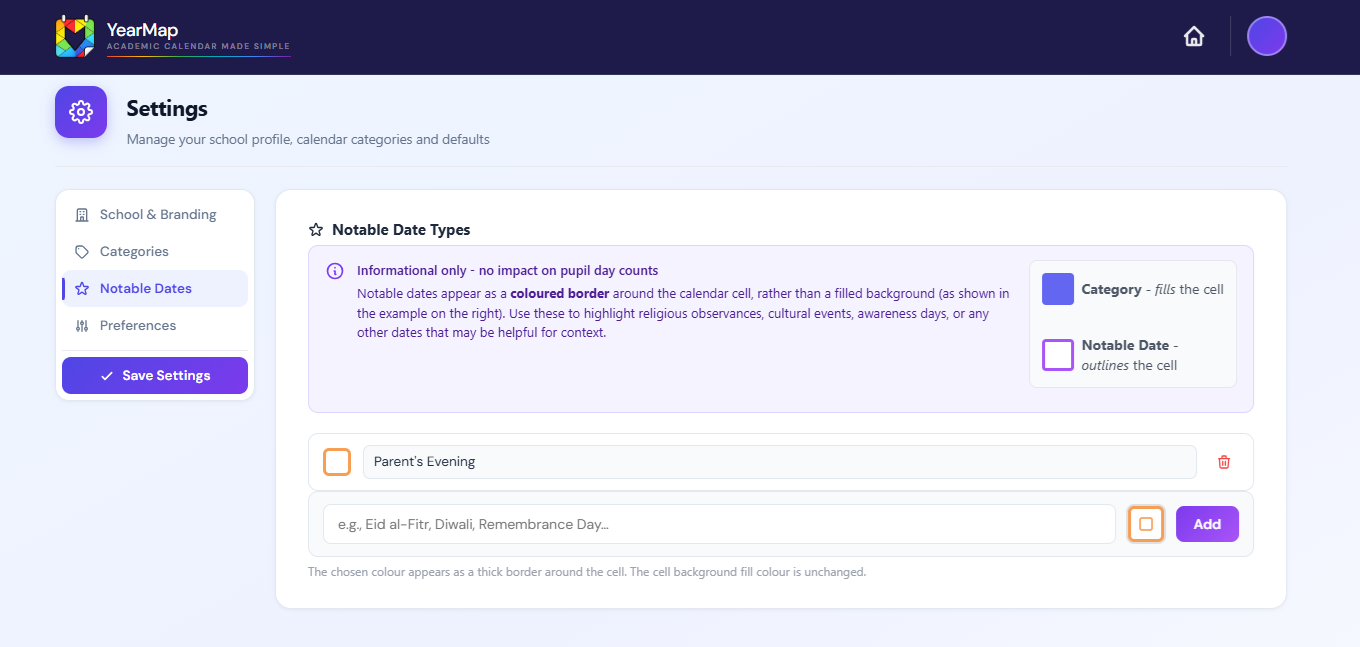
| Notable Date Types | Named, colour-coded markers (e.g. "Parents' Evening", "Open Day") that can be used to highlight dates without affecting pupil days. See Notable Dates | Optional |
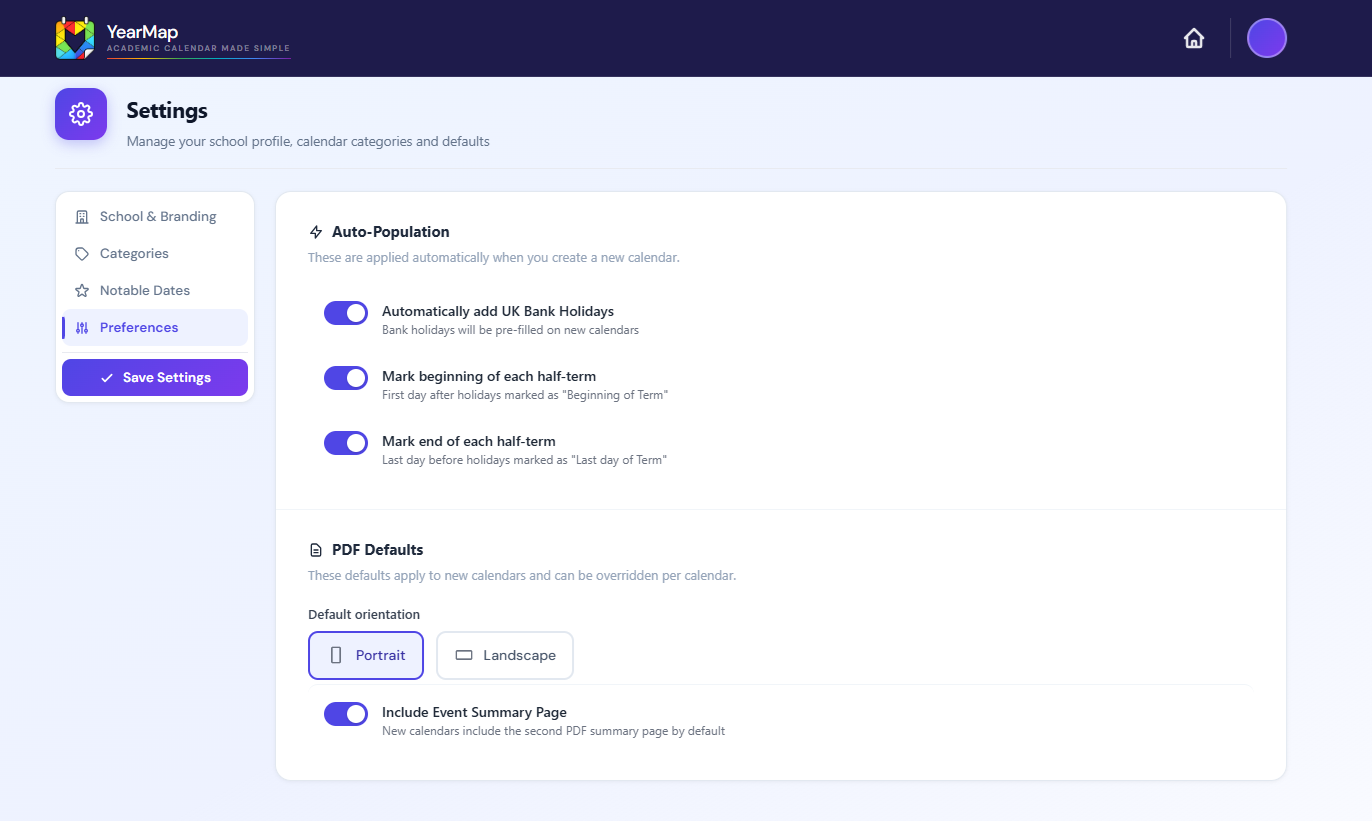
| Auto Bank Holidays | Automatically insert England & Wales bank holidays into new calendars. Can be overridden per calendar in Step 3 of the wizard | Optional |
| Term Boundary Markers | Controls whether "Beginning of Term" and "Last day of Term" markers are added automatically around school holidays. Can be overridden per calendar in Step 3 | Optional |
| Default PDF Orientation | Portrait or landscape used as the starting point for new calendars. Can be overridden per calendar in Step 5 | Optional |
| Include Diary / Summary Page | The domain-wide default for whether generated PDFs include a second summary page. Can be toggled per calendar in Step 5, though this becomes mandatory automatically for any calendar containing Diary Events; see Diary / Summary Page | Optional |
Managing the catalogue while you work
You can open Settings in a separate browser tab while a calendar is open in the wizard, add or edit a category or notable date type, save, and return to the calendar tab. YearMap detects that Settings have changed and refreshes the available categories and notable date options for you, so you don't need to close and reopen the calendar to pick up the change. Look for the Open Settings link in the Step 4 event-entry area.
Existing calendars stay safe
Historic calendars keep working even as your domain catalogue evolves. Each calendar retains its own saved structure, and when an older calendar is opened or edited, YearMap reconciles it against the current shared catalogue safely in the background. You don't need to do anything, and older calendars won't suddenly break or lose their categories because the domain catalogue changed.
The Dashboard
Your calendar management home
After signing in you land on the Dashboard. This is where you manage all your calendars. It shows two tabs:
Calendars you own. You can edit, rename, share, clone, delete, and export these.
Calendars shared by colleagues. You can view, export, and (if permitted) edit these.
Each calendar tile offers Edit, View, Rename, Share, Clone, Delete (where permitted), PDF, ICS, and Live Feed actions as appropriate for your permission level.
Calendars stay current automatically
Once a calendar has an ICS or PDF, the Dashboard helps keep both up to date without extra effort on your part:
- Editing a calendar keeps its ICS file current automatically as the calendar auto-saves; see ICS Export.
- If a calendar's PDF has fallen behind its ICS, the Dashboard regenerates that PDF for you in the background; see Automatic PDF Updates.
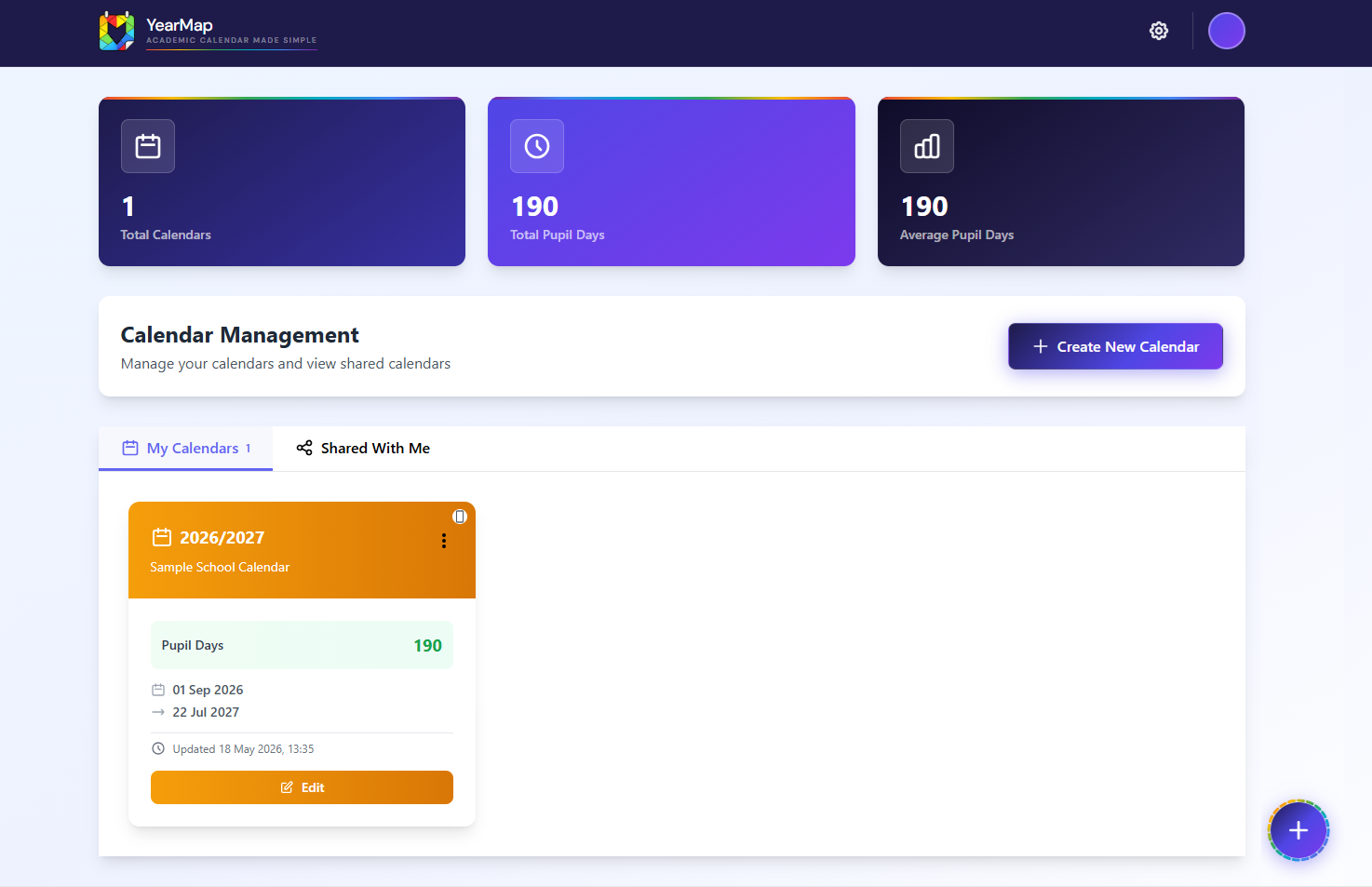
The top of the dashboard shows summary statistics for your own calendars: total calendars, total pupil days across all calendars, and your average pupil days per calendar.
Creating a Calendar
Start the wizard to build your academic calendar
To create a new calendar, click the + Create New Calendar button on the dashboard. This opens the five-step calendar wizard.
Your calendar is saved automatically as you progress through the wizard. Auto-save activates from Step 2 onwards once an academic year has been entered. Changes made on Step 1 alone are not saved until you advance.
While you're creating or editing, the wizard heading and the browser tab title both show which calendar you're working on. A new calendar shows Create New Calendar until you enter a name, at which point the heading and page title switch to that name, for example Creating: Sample Academy 2026/27. When editing an existing calendar, the heading shows Editing: Sample Academy 2026/27. This makes it easy to tell calendars apart if you have several open in different browser tabs; see Editing in Multiple Tabs.
The Wizard Steps
A breakdown of each step in the calendar builder
Step 1: Tell YearMap the academic year and its overall start and end dates.
Step 2: Enter the start and end dates for each of your three terms. YearMap automatically fills in the holiday gaps between terms (Christmas and Easter).
Step 3: Review calendar-specific settings, such as Auto Bank Holidays and term boundary markers. Your domain defaults are used as the starting point and can be overridden for this calendar.
Step 4: Use the calendar preview to add your half-term holidays and any other category events, notable dates, or diary events.
Step 5: Review the summary, choose export options, and generate your PDF and ICS.
Once you save these dates, YearMap automatically inserts the holiday periods between the terms using the School Holidays category, so the Christmas and Easter holidays don't need to be entered manually. YearMap suggests common term dates for schools in England and Wales; if you're elsewhere, simply enter your own. All dates must be weekdays.
Categories
The shared category catalogue for your school
Categories define the type of event for a date, for example a school holiday or an INSET day. Each category has a name, a colour used in the calendar preview and PDF, and whether dates in that category count towards the pupil day total.
Categories are managed centrally, in Settings, at the domain/organisation level. Everyone at your school sees the same category list when they open the calendar wizard, which keeps colleagues working from a consistent catalogue when they collaborate on a shared calendar. See Settings for how the shared catalogue works and how changes are picked up in an open calendar.
Built-in categories
A fixed set of categories always exists and is available in every calendar. Their names and core behaviour cannot be deleted or renamed, but you can configure their colours in Settings. A category only appears in the calendar output and PDF colour key if at least one event has been assigned to it.
| Category | Default Colour | Pupil Day? |
|---|---|---|
| Teacher INSET Day | #00B0F0 | No |
| School Holidays | #CC0001 | No |
| Beginning of Term | #FFFF00 | Yes |
| Last day of Term | #00B050 | Yes |
| Bank Holiday | #E36C0A | No |
Custom categories
You can add custom categories on top of the built-in ones from Settings. A custom category name must not clash with a built-in category name or with another custom category name already in your school's catalogue. Once added, a custom category is available to everyone at your school in every calendar.
When assigning dates, a date cannot belong to both a pupil-day category and a non-pupil-day category simultaneously. If a conflict with an auto-generated entry is detected, the auto-generated entry is removed and term boundaries are recalculated automatically.
Term Dates & Holidays
How half-terms, bank holidays and pupil-facing term boundaries are calculated
Half-term holidays and the School Holidays category
The School Holidays category has a special role: it's the signal YearMap uses to place the Last day of Term and Beginning of Term boundary markers automatically. For this to work correctly, YearMap expects exactly one School Holidays entry per term, the mid-term half-term break.
Over a full academic year you will therefore add three half-term holidays in total, one inside each of the three terms, using the School Holidays category: the autumn half-term (typically late October), the spring half-term (typically mid-February), and the summer half-term (typically late May).
The inter-term holidays (Christmas and Easter) are filled in automatically by YearMap from the gaps you enter in Step 2, so you don't need to add them manually. The three mid-term half-term breaks described above are the only School Holidays entries you need to add yourself.
The actual first and last pupil day can shift
The term start and end dates you enter in Step 2 describe the structure of the term. But the day pupils actually attend can be different, for example if the entered start of term is a Monday and that Monday happens to be an INSET day, the first actual pupil day is Tuesday. YearMap works this out automatically and displays the real pupil-facing start and end dates, rather than always showing the raw Step 2 dates. This dynamic calculation is used consistently in the Review step, the PDF, and the view-only calendar page.
Non-pupil events just outside the academic year
YearMap allows certain non-pupil events, such as an INSET day, just before the first pupil day or just after the final pupil day. These out-of-bounds entries don't shift the academic year's overall start and end dates; they're simply listed appropriately alongside everything else. In the Review step, out-of-bounds non-pupil events are placed at the end of the relevant summary group rather than disrupting the normal chronological holiday grouping.
Bank holidays
Auto Bank Holidays remain supported. When enabled, relevant bank holiday dates are inserted automatically into your calendar. This can be enabled or disabled from Settings as your school's domain default, and overridden for an individual calendar in Step 3 of the wizard.
Adding Dates & Events
Step 4: the calendar preview, the dates list, and three kinds of entries
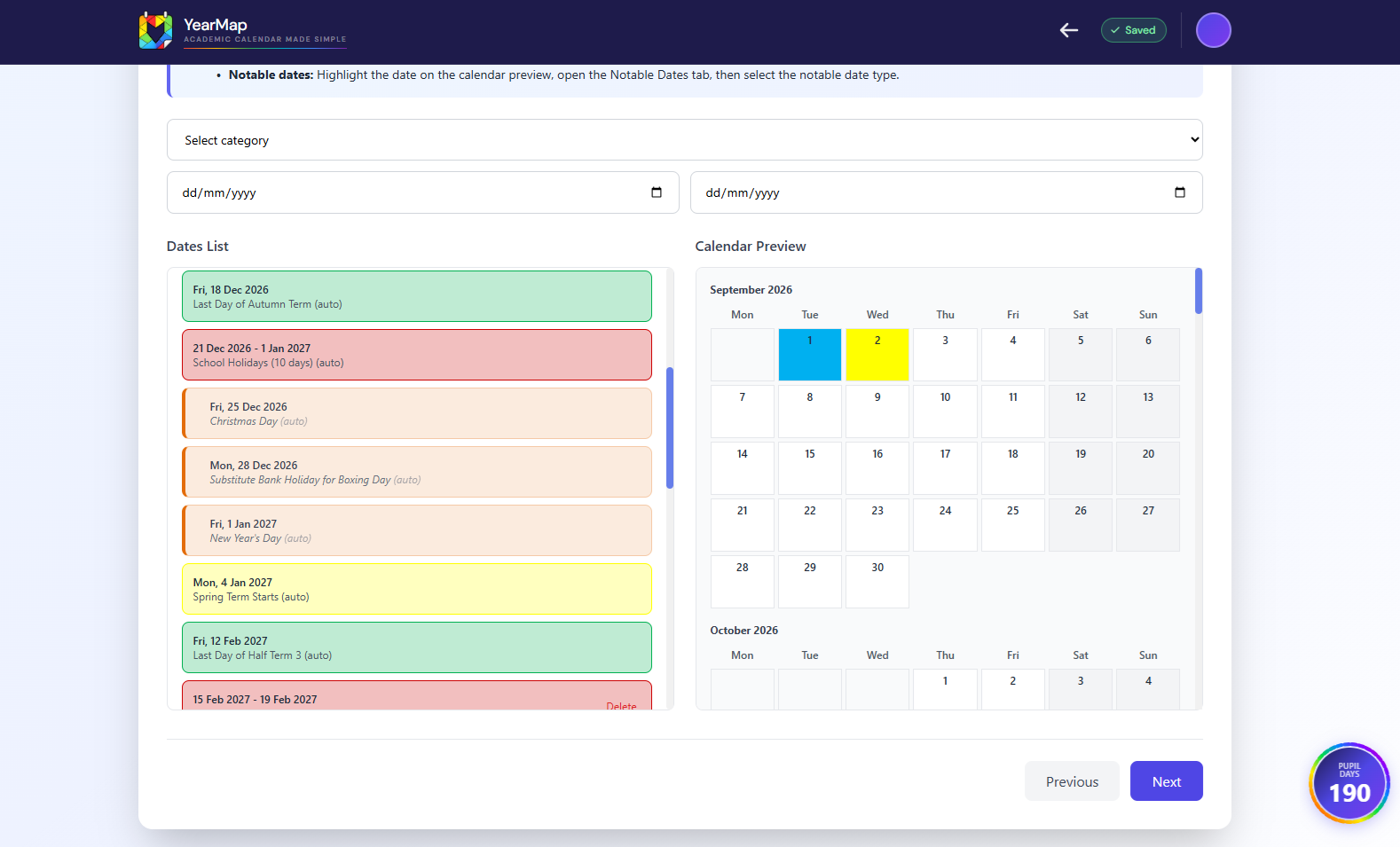
Step 4 is a clean, focused workspace: your list of assigned dates and events sits on the left, and a live calendar preview sits on the right, side by side on desktop. Select a date, or drag across a range, on the calendar preview to open a dialog for adding something to that selection. Weekends are automatically excluded from any range you select.
A small help icon opens a short explainer of the available event types when you need a reminder, instead of a permanent help panel taking up space on the page.
Three kinds of entries
The dialog that opens when you select a date or range supports three different kinds of entries. Understanding the difference makes it much easier to build out your calendar correctly.
| Entry type | Uses a colour? | Affects pupil days? | Where it appears |
|---|---|---|---|
| Category Event | Yes | Depends on the category | Calendar grid, PDF colour key, ICS |
| Notable Date | Border ring only | No | Calendar grid highlight, Review summary |
| Diary Event | No, plain text | No | Event list, Diary/summary PDF page, ICS |
A category event applies one of your school's shared categories, such as Teacher INSET Day, School Holidays, Bank Holiday, or a custom non-pupil category, to a date or range, and is colour-coded to match. Notable Dates and Diary Events are covered in full in their own sections: see Notable Dates and Diary Events.
Deleting dates from the list
The list in Step 4 shows everything you've added, with a Delete button beside each entry. Auto-generated entries, such as bank holidays inserted by the Auto Bank Holidays setting and term boundary markers, don't have a delete button and can't be removed individually. To remove them, toggle the relevant setting off in Step 3.
Notable Dates
Highlighting individual dates without affecting pupil day counts
Notable dates let you mark individual calendar cells with a coloured border ring, a visual highlight that sits on top of any existing category colour. They're separate from categories: applying a notable date marker to a cell has no effect on pupil day calculations, the category colour key, or the PDF colour legend.
Setting up notable date types
Notable date types are configured centrally in Settings, at the domain level, before you use them in a calendar. Each type has a name and a colour, common examples might be "Parents' Evening", "Open Day", or "Governors' Meeting". Types defined in Settings are shared across your whole school and are available in every calendar.
Applying notable dates in the wizard
Notable dates in the Review step
If any notable date markers have been applied, the Review step (Step 5) displays a Notable Dates summary panel listing each notable date type used and how many dates have been marked with it.
Diary Events
Plain-text calendar entries that turn YearMap into a working school diary
A Diary Event is a plain text calendar entry. Unlike a category event, it doesn't use a colour and has no effect on pupil-day calculations. Diary Events are what let a YearMap calendar work as a genuine day-to-day school diary rather than just an academic year overview.
Typical Diary Events include things like a Parents' Breakfast Morning, a Parents' Evening, a school trip, a staff meeting, an Open Evening, a Governors Meeting, an assessment window, a performance, a sports fixture, or a deadline.
| Diary Event type | Timing |
|---|---|
| Single date | Untimed by default. You can enable a time option and enter a start time and a finish time if you want the event to be timed. |
| Date range | Treated as an all-day, multi-day event. Timed entry isn't offered for a range. |
You can add more than one Diary Event to the same date, for example a trip and a staff meeting on the same day. Where multiple timed diary events fall on the same date, they're sorted by time in the list, the Diary PDF page, and the ICS feed.
Where Diary Events appear
Diary Events appear in chronological order alongside your other entries in three places:
- The event list in Step 4
- The Diary/summary page of the generated PDF
- The generated ICS feed
Diary Events appear under their own plain title in all of these places; they aren't labelled or tagged as diary items in the exported PDF or ICS output.
Pupil Days
How YearMap calculates the pupil day count
YearMap automatically calculates pupil days based on term dates, holidays and closures. This helps schools ensure they meet required teaching day counts.
The pupil day count is calculated by iterating over every weekday within your academic year's start and end dates, then subtracting any dates assigned to a non-pupil-day category (such as School Holidays, Bank Holidays, or INSET Days).
The pupil day total updates in real time as you assign and remove dates in the wizard. A floating counter badge appears at the bottom-right of the screen from Step 3 onwards, keeping the current count visible as you work. The final count is shown prominently in the Review step and is printed on the generated PDF.
Review & Generate
Step 5: check everything, choose your export options, and generate
Step 5 gives you a clear summary of the finished calendar before you generate anything. The top summary shows the academic year, the actual academic year start and end dates, the calendar title, the pupil-day total, and a compact view of your term dates.
Academic Year Event Summary
Below the top summary, the Academic Year Event Summary groups and counts the events you've added. To keep this count focused on the events that matter most for a quick check, Beginning of Term and Last day of Term markers are excluded from this display.
If you've used notable dates, a Notable Dates summary panel appears listing each type used and how many dates carry it. If you've added any Diary Events, a Diary Events total is also shown.
Export options
| Option | What it does |
|---|---|
| Page Orientation | Choose portrait or landscape for the generated PDF. This overrides your domain default for this calendar only. |
| Include Diary / Summary Page | Adds a second PDF page listing events in date order. If the calendar contains any Diary Events, this is automatically ticked and locked on; see Diary / Summary Page. |
| Custom notes | Optional free text that appears at the bottom of the PDF. |
Click Generate to produce your PDF and ICS files.
Sharing Calendars
Collaborate with colleagues at your institution
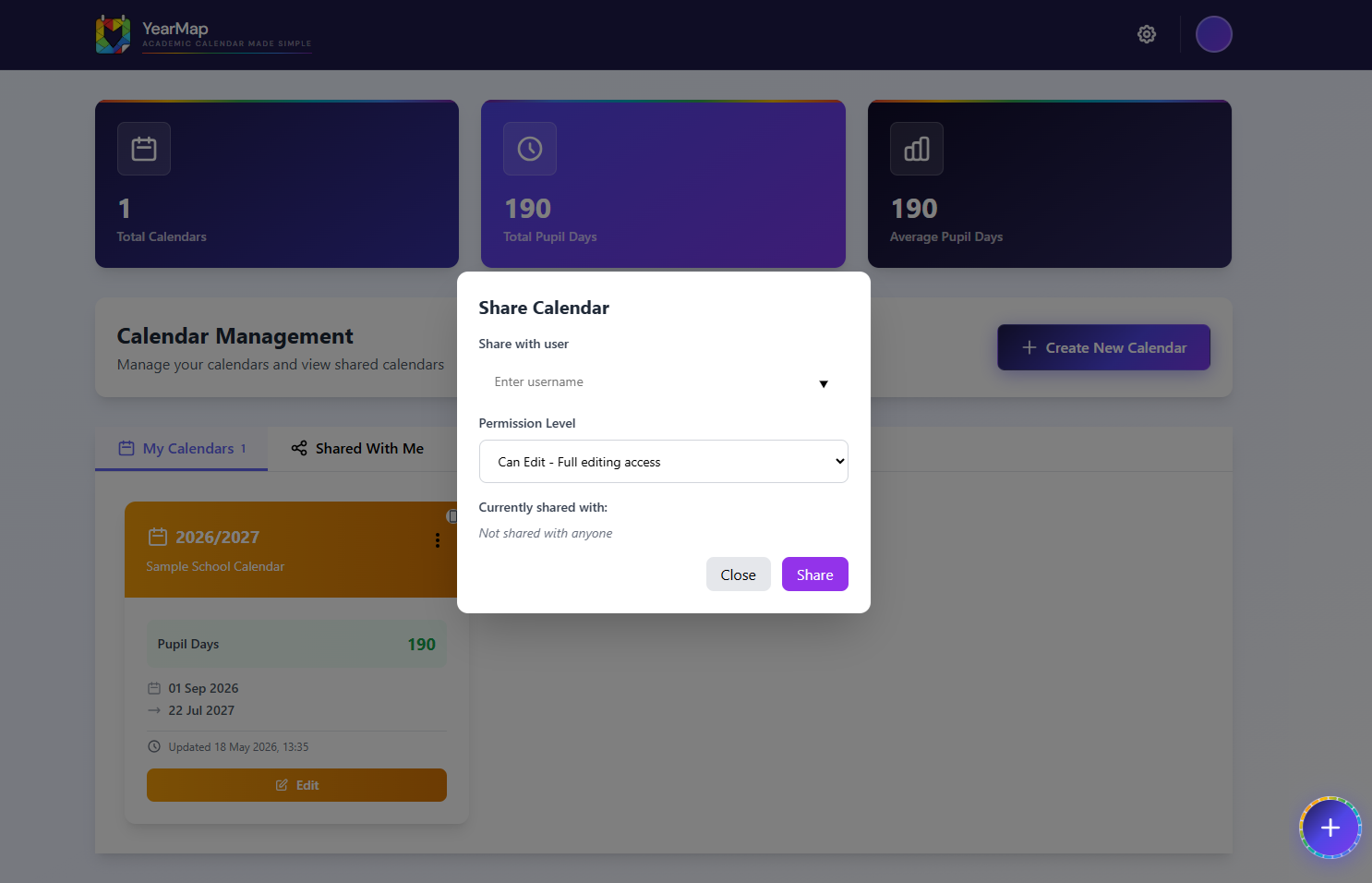
You can share any calendar you own with other users at the same institution domain. Shared calendars appear in the recipient's Shared With Me tab on their dashboard.
Permission Levels
What each permission level allows
| Permission | What the user can do | What the user cannot do |
|---|---|---|
| Can View | Open and inspect the calendar; export PDF and ICS; clone a copy to their own account | Open the editor; save any changes to the original |
| Can Edit | Open the full editor; save changes back to the owner's original file; generate new PDF and ICS; export; clone | Change ownership; delete the calendar; manage sharing settings |
Cloning Calendars
Create a separate, independent copy of a calendar
Cloning creates a completely separate copy of a calendar. This is different from sharing, which keeps everyone working on one canonical original.
| Sharing | Cloning | |
|---|---|---|
| Result | Same calendar, opened by more than one person | A brand new, independent calendar |
| Edits | Write back to the one original file | Only affect the clone; the source calendar is untouched |
| Ownership | Stays with the original owner | The cloning user owns the new copy |
Cloning is especially useful for the collaborative diary workflow. A common pattern:
Editing in Multiple Tabs
Working on more than one calendar at once
Each open calendar editor tab keeps track of which calendar it's editing, independently of any other tab. Opening Settings or the Dashboard in another tab doesn't make an editor tab lose track of its own calendar.
This means you can comfortably edit several calendars at once in different browser tabs. Each tab continues auto-saving to the correct calendar, and switching between tabs or opening Settings alongside your editor doesn't risk creating a duplicate calendar file.
Revoking & Leaving
Removing a colleague's access to a shared calendar
You can remove a shared user at any time. Open the Share panel for the calendar, find the user in the Currently shared with list, and click Remove.
Access is removed immediately. Any subsequent attempt by the removed user to edit, generate, or export the calendar will be rejected. Their Shared With Me tab will no longer show the calendar after their next dashboard refresh.
Colleagues can also remove themselves from a shared calendar using the Leave option in their Shared With Me tab.
PDF Export
Generating a printable academic calendar
Click the PDF button on any calendar card, or complete Step 5 of the wizard to generate a PDF. The generated PDF includes:
- Your school name and logo (if uploaded)
- Academic year title
- Monthly calendar grid with colour-coded date entries
- Term summary for autumn, spring, and summer terms, based on the actual pupil-facing term boundaries
- Category colour key
- Total pupil day count
- Provisional next-year start date (if entered)
- Optional custom notes
- A Diary/summary page, optional unless the calendar contains Diary Events
Diary / Summary Page
The optional (and sometimes mandatory) second PDF page
Generated PDFs can include a second page listing events in chronological order. Normally, whether this page is included is up to you: it's controlled by your domain default in Settings, and can be toggled per calendar in Step 5.
When the page is present because of Diary Events, those events appear on it in chronological order, and timed Diary Events retain their time information so staff can see when things happen at a glance. When a calendar has no Diary Events, the page behaves as a normal, fully optional event-summary page.
ICS Export
Importing your academic calendar into Google Calendar, Outlook, your school website CMS, and more
The ICS file is a standard iCalendar file compatible with Google Calendar, Microsoft Outlook, Apple Calendar, and most other calendar applications. Each category event in the ICS corresponds to a date entry in your calendar, with date ranges in the same category grouped into multi-day events. Bank holidays use their official name as the event title.
Diary Events are included in the ICS too. They appear as plain, chronologically-ordered entries, all-day for a single date or a date range, or timed if you enabled a start and finish time for a single-day Diary Event, so they behave as real timed entries in a compatible calendar app.
To download the ICS file, click the ICS button on the calendar card from your dashboard.
Importing once vs. staying up to date
A one-time ICS import or download gives you a snapshot of the calendar at that moment; it won't update itself if the calendar changes later. If you want your calendar to stay current automatically, subscribe to the Live ICS Feed instead of repeatedly re-downloading and re-importing the file.
Live ICS Feed
A subscription that keeps staff calendars current automatically
From the Dashboard, you can generate and share a Live Feed link, a live ICS subscription URL for a calendar. Staff subscribe to this link once in their own calendar application (Google Calendar, Outlook, Apple Calendar, or another compatible app), and their calendar continues to receive future changes automatically, without anyone needing to email out a new file after every edit.
Once an ICS has been generated for a calendar, further edits to that calendar keep the ICS current automatically as the calendar auto-saves; see ICS Export. A typical workflow looks like this: the calendar manager updates YearMap, the existing ICS is refreshed automatically behind the scenes, and subscribed staff receive the changes the next time their calendar application checks the feed.
Automatic PDF Updates
Keeping previously generated PDFs current without regenerating on every edit
Generating a PDF is more resource-intensive than saving an ICS, so YearMap doesn't regenerate the PDF every time you make a small edit and auto-save. Instead, it keeps existing PDFs current using a background refresh:
In short: once a PDF has been generated, YearMap can keep it current automatically after later calendar changes.
View-Only Calendars
Sharing a read-only view of a calendar
The view-only calendar page mirrors the current wizard behaviour: it reflects your school's current shared categories, the actual (dynamic) term start and end dates, any notable dates that have been applied, and any Diary Events, all rendered from the calendar's current data. Colleagues with Can View access see this page when they open a shared calendar; see Permission Levels.
From the view-only page, a colleague can export the current PDF and ICS, and clone the calendar into their own account if they need an editable copy of their own.
Using YearMap Outside England & Wales
Notes for schools based outside England and Wales
YearMap has been developed and optimised for schools in England and Wales. The system reflects the academic year structure commonly used in England and Wales: three terms (autumn, spring, and summer), automatic inclusion of England and Wales bank holidays, and pupil day calculations based on standard conventions.
That said, YearMap does not restrict access based on location. Any school that authenticates with a valid organisation domain email is welcome to use the system. If your school operates a similar three-term model, you should find YearMap works well with minimal adjustment.